

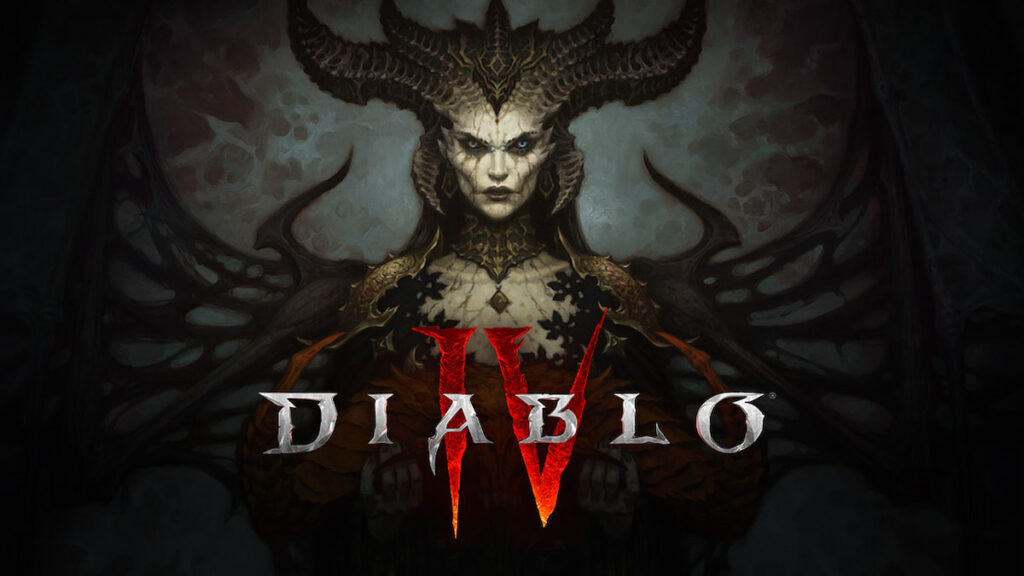
The highly anticipated release of Diablo 4 has gamers around the world eager to dive into the world of Sanctuary once again. With the rise of portable gaming, many are curious whether playing Diablo 4 on the Steam Deck is possible. The answer is a resounding yes!
We will go over how to get the game on your steam deck, step by step, so everyone can enjoy the beta and full game upon release.
Is Diablo 4 on Steam Deck?
Yes, Diablo 4 can be played on the Steam Deck, allowing players to enjoy the immersive gaming experience on a portable device. Although Diablo 4 is not directly available through the Steam platform, it can be run on the Steam Deck using the Battle.net launcher.
More N4G Unlocked: How to Get Biteberry in Diablo 4
How To Play Diablo 4 on Steam Deck
We have the instructions on playing Diablo 4 on Steam Deck, thanks to our friends at GamingOnLinux:
- Enter Desktop Mode (press Steam button > Power > Switch to Desktop).
- Get the Battle.net launcher through your internet browser (e.g., Chrome, Firefox).
- Obtain ProtonUp-Qt from the Discover application.
- Within ProtonUp-Qt, download the latest GE-Proton7-51-diablo_4_beta.
- Close ProtonUp-Qt once complete.
- In Steam, click Add A Game at the bottom left
- Choose Add a non-Steam Game
- Click Browse
- Navigate to your Downloads folder in the file explorer
- Select All Files at the bottom
- Pick the Battle.net-Setup.exe file
- After adding it, locate the Battle.Net installer shortcut in Steam
- Right-click it
- Go to Properties
- Click Compatibility
- Now check the box and choose GE-Proton7-51-diablo_4_beta.
- Execute the installer and finish the installation.
- Do not log in; close it instead.
- Right-click the shortcut
- Pick Properties
- Click Browse
- Update the shortcut to target Battle.net Launcher.exe
- The location depends on the installation path.
- SD Card: /run/media/mmcblk0p1/Battle.net/
- SSD: /home/deck/.steam/root/steamapps/compatdata/ (locate the most recent id) /pfx/drive_c/Program Files (x86)/Battle.net/
Now Battle.Net is ready to use and can be launched in Gaming Mode from the Non-Steam section in your Steam Library. You might need to manually display the on-screen keyboard with STEAM + X and control a mouse cursor by holding the STEAM button, using the Right Trackpad, and the Right Trigger as a mouse button.
The Battle.Net interface may be truncated, but clicking along the top will cause the app to flicker into focus, revealing the installation buttons at the bottom.
Once completed, you can proceed to install and play Diablo 4. If a GPU error message appears, simply click OK, and the game will run.
Today’s best deals
- Logitech G903 wireless gaming mouse – Save $30
- Logitech G G923 – Save $50
- Samsung Odyssey G65B – Save $150
Follow us on TikTok, Facebook, Instagram, Discord, and Twitter for more from N4G Unlocked!