

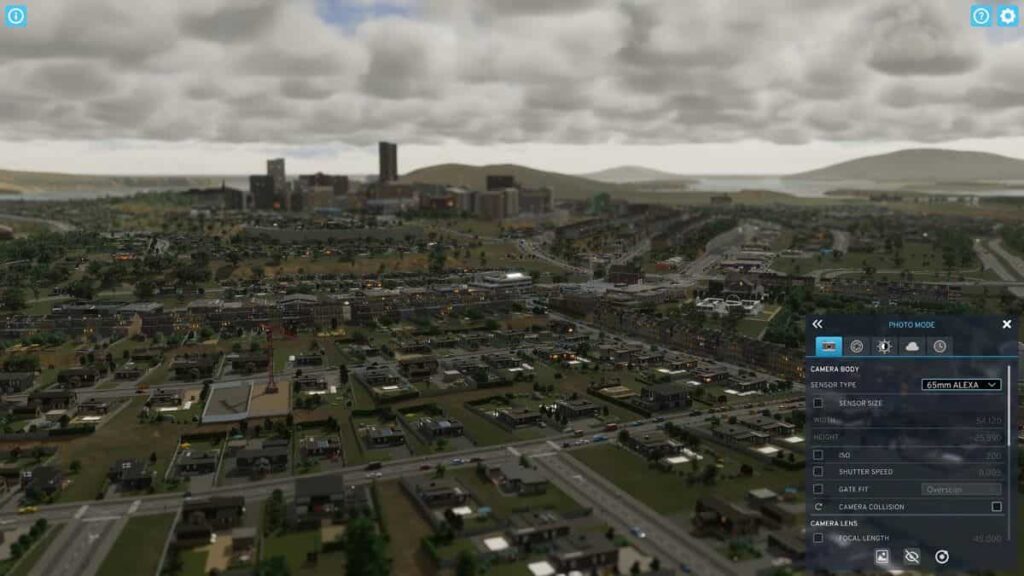
Wondering where you can find your saved screenshots in Cities Skylines 2? You’re not alone. We’ll walk you though the process to locate your save folder for all photos taken in the game.
Cities Skylines 2 offers up a built-in cinematic camera feature and photo mode, allowing you to capture the progress of your city as you reach development milestones. You can even adjust the weather and cloud placements to ensure that you’re getting its good side. That said, there’s a possibility that you might have lost track of your working album, as photos aren’t saved in-game. But don’t worry — you can still access your photos with ease on PC. Here’s where you can find them.
Where Are Screenshots Saved in Cities Skylines 2?
If you’re playing Cities Skylines 2 on PC, then you’ve probably noticed you can’t access your saved photos in-game. Instead, you’ll find them in the following location:
- C:Users[YourUserName]AppDataLocalLowColossal OrderCities Skylines IIScreenshots
Just note that where [Your UserName] is specified in the address should be replaced with the username associated with your Cities Skylines 2 save account. Make sure the parentheses are removed when you enter the address. Inside the folder, you’ll find all photos taken in the game.
Because the folder is hidden by default, you may need to access your settings to view your saved photos. To do this, go to the View menu on the File Explorer bar. Look for Show/Hide and make sure that Hidden Items is checked. You can also enter the code %appdata% in the search bar on your Windows toolbar if you’re looking for quick, one-time access.
Avid photographers may want to create a shortcut on their desktop or within an existing photo album for easy access in the future. This will save you the the trouble of going through extra steps down the line. For more on Cities Skylines 2, check out these additional guides from our team: